| Key Insight | Explanation |
|---|---|
| WordPress powers 43% of all websites | As of 2026, WordPress remains the world’s most widely used CMS, making it the logical starting point for most small business websites. |
| Theme selection shapes everything | Your theme controls layout, speed, and mobile responsiveness. Choosing the wrong one early costs significant time to fix later. |
| Page builders accelerate design | Tools like Elementor and the native WordPress Block Editor let non-developers build professional layouts without writing code. |
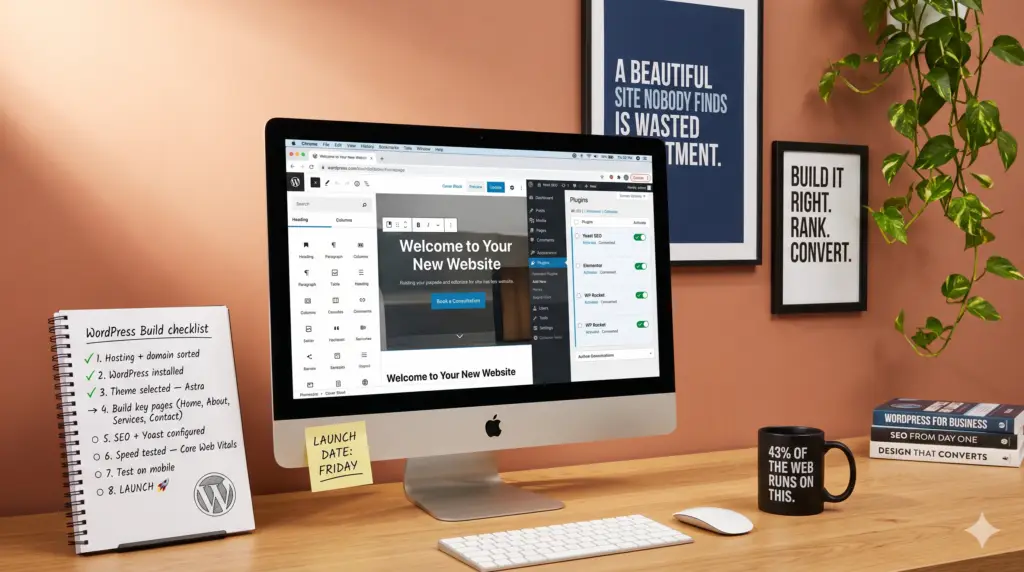
| SEO must be built in from day one | A beautiful site that nobody finds is wasted investment. Plugins like Yoast SEO and Rank Math simplify on-page optimisation. |
| Performance directly affects conversions | Google’s Core Web Vitals (a set of speed and usability benchmarks) penalise slow sites in search rankings and drive visitors away. |
| Professional help pays for itself | For businesses in competitive local markets, a professionally designed WordPress site consistently outperforms DIY builds in enquiry volume. |
Your website is often the first impression your business makes. A slow, outdated, or confusing site drives potential customers straight to a competitor. Good WordPress website design solves that problem by giving you a professional, fast, and search-friendly online presence that works hard around the clock. This guide walks you through every stage of the process, from picking a hosting plan to launching a polished, conversion-ready site. Whether you’re building your first site or rebuilding an old one, you’ll finish with a clear, actionable plan. Expect to invest 10 to 20 hours for a basic site, or considerably less if you work with a professional agency from the start.
What Is WordPress Website Design?
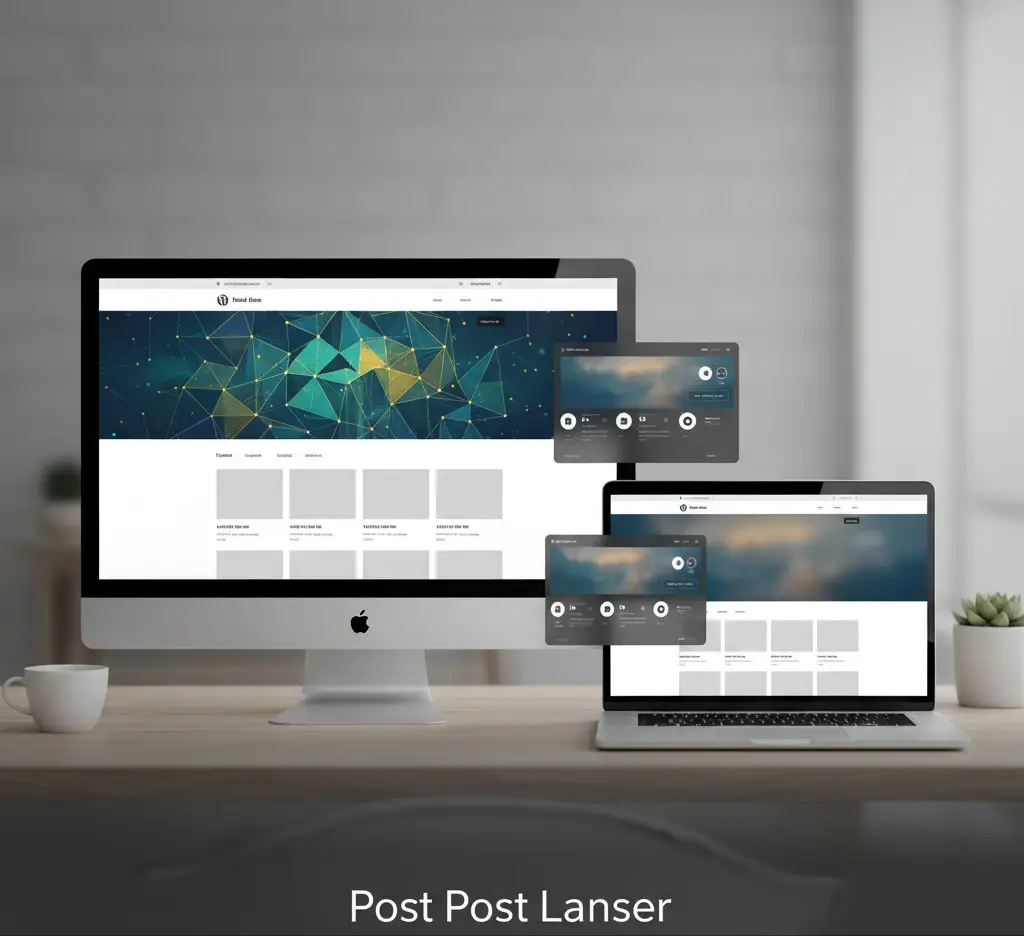
WordPress website design is the process of building and styling a website on the WordPress content management system (CMS), the open-source platform that powers roughly 43% of all websites on the internet as of 2026. It covers everything from choosing a theme and arranging page layouts to configuring plugins and optimising for search engines.
Why WordPress Dominates in 2026
WordPress has held its dominant position for good reason. It’s flexible enough to power a simple five-page brochure site for a local nursery and sophisticated enough to run a high-volume ecommerce store. The core software is free, the ecosystem of themes and plugins is vast, and the learning curve has dropped significantly with the introduction of the Gutenberg block editor in recent years [1].
- Open-source flexibility: You own your site outright. No platform lock-in, no monthly “builder” fees eating into your budget.
- Plugin ecosystem: Over 59,000 plugins extend WordPress functionality, from contact forms to booking systems to full ecommerce stores.
- SEO-friendly architecture: WordPress generates clean, crawlable code that search engines can read and rank effectively.
- Community support: A global developer community means solutions to almost any problem are a search away [2].
- Scalability: Your site can grow with your business without needing to migrate to a new platform.
Industry analysts consistently point to WordPress as the most cost-effective CMS for small and medium-sized businesses. According to the official WordPress.org documentation, the platform’s block-based design system now allows non-technical users to build layouts that previously required a developer.
WordPress.com vs. WordPress.org: Which Should You Use?
This is one of the most common points of confusion. WordPress.com is a hosted service with built-in infrastructure, while WordPress.org is the self-hosted, open-source software you install on your own server. For most businesses that want full control and professional results, WordPress.org is the right choice.
| Feature | WordPress.com | WordPress.org (Self-Hosted) |
|---|---|---|
| Hosting included | Yes | No (you choose your host) |
| Plugin access | Limited (paid plans only) | Full access to 59,000+ |
| Custom themes | Restricted on free tier | Unlimited |
| Monetisation | Limited | Full control |
| Cost | Free to £45/month | Hosting from ~£3/month |
What You’ll Need Before You Start
Before touching a single setting, gather the essentials. Starting without these in place leads to rework, wasted time, and a site that looks half-finished at launch.
Prerequisites and Tools
- Domain name: Your web address (e.g., yourbusiness.co.uk). Keep it short, memorable, and brand-relevant.
- Web hosting account: A server where your site lives. Managed WordPress hosting from providers like SiteGround, Kinsta, or WP Engine is worth the extra cost for reliability and speed.
- Brand assets: Your logo, brand colours (in hex codes), and any photography you want to use on the site.
- Content plan: A clear list of the pages you need and the key message each one must communicate.
- SSL certificate: Encrypts data between your site and visitors. Most hosts provide this free via Let’s Encrypt. Google flags sites without SSL as “Not Secure,” which destroys trust immediately.
- A basic understanding of your audience: Who are they? What do they need to see before they’ll contact you or buy?
Pro Tip: Before you register a domain, search for it on social media platforms too. Consistent branding across your website and social profiles builds recognition far faster than a mismatched handle.
At Three Girls Media, we’ve found that clients who arrive with clear brand assets and a rough content plan get their sites live two to three weeks faster than those who figure it out mid-build. A little preparation upfront saves a lot of back-and-forth later.
Step 1: Choose Your Hosting and Domain
Selecting the right hosting plan is the single most important technical decision in WordPress website design. Your host determines your site’s speed, uptime, and security baseline, all of which affect both user experience and search rankings.
How to Pick the Right Hosting Plan
- Identify your traffic expectations. A new local business site with under 1,000 monthly visitors can start on shared hosting. A growing ecommerce store needs managed WordPress hosting from day one.
- Check for one-click WordPress installation. Reputable hosts include this as standard. It removes the need for manual file uploads via FTP (File Transfer Protocol, a method of moving files between your computer and a server).
- Confirm automatic backups. Daily automated backups are non-negotiable. If something breaks, you need a recent restore point.
- Verify server location. For UK businesses targeting UK customers, choose a host with UK or EU data centres. Closer servers mean faster load times for your visitors.
- Read the renewal pricing. Many hosts offer attractive introductory rates that triple on renewal. Check the standard rate before committing.
Once your hosting account is live, register your domain through the same provider or a dedicated registrar like Namecheap. Point the domain’s DNS (Domain Name System, the internet’s address book) records to your hosting server. Most hosts walk you through this with a setup wizard [3].
Pro Tip: Avoid registering your domain through a website builder platform you might want to leave later. Transferring domains away from some providers is unnecessarily complicated. Use a standalone registrar and keep your domain separate from your hosting where possible.
Step 2: Install WordPress and Configure Core Settings
Installing WordPress takes under five minutes on any reputable managed host. The real work is in the initial configuration, which most beginners skip and later regret.
Initial Setup Steps
- Run the one-click installer from your hosting control panel. Name your site, create an admin username (never use “admin” as it’s the first thing hackers try), and set a strong password.
- Update everything immediately. Go to Dashboard > Updates and install the latest version of WordPress core, along with any default plugins and themes [4].
- Set your permalink structure. Navigate to Settings > Permalinks and choose “Post name.” This creates clean, readable URLs like yourdomain.com/services rather than yourdomain.com/?p=123.
- Configure your timezone and date format under Settings > General. This matters for scheduled content and any booking integrations.
- Delete unused default content. Remove the “Hello World” post, the “Sample Page,” and the Akismet and Hello Dolly plugins if you don’t need them. A clean install is a faster install.
- Install a security plugin. Wordfence or iThemes Security adds a firewall and login protection. Configure it before you start adding content.
According to the official WordPress learning platform, understanding the admin dashboard is the foundation of effective site management. Spend 20 minutes exploring each menu before diving into design decisions [5].
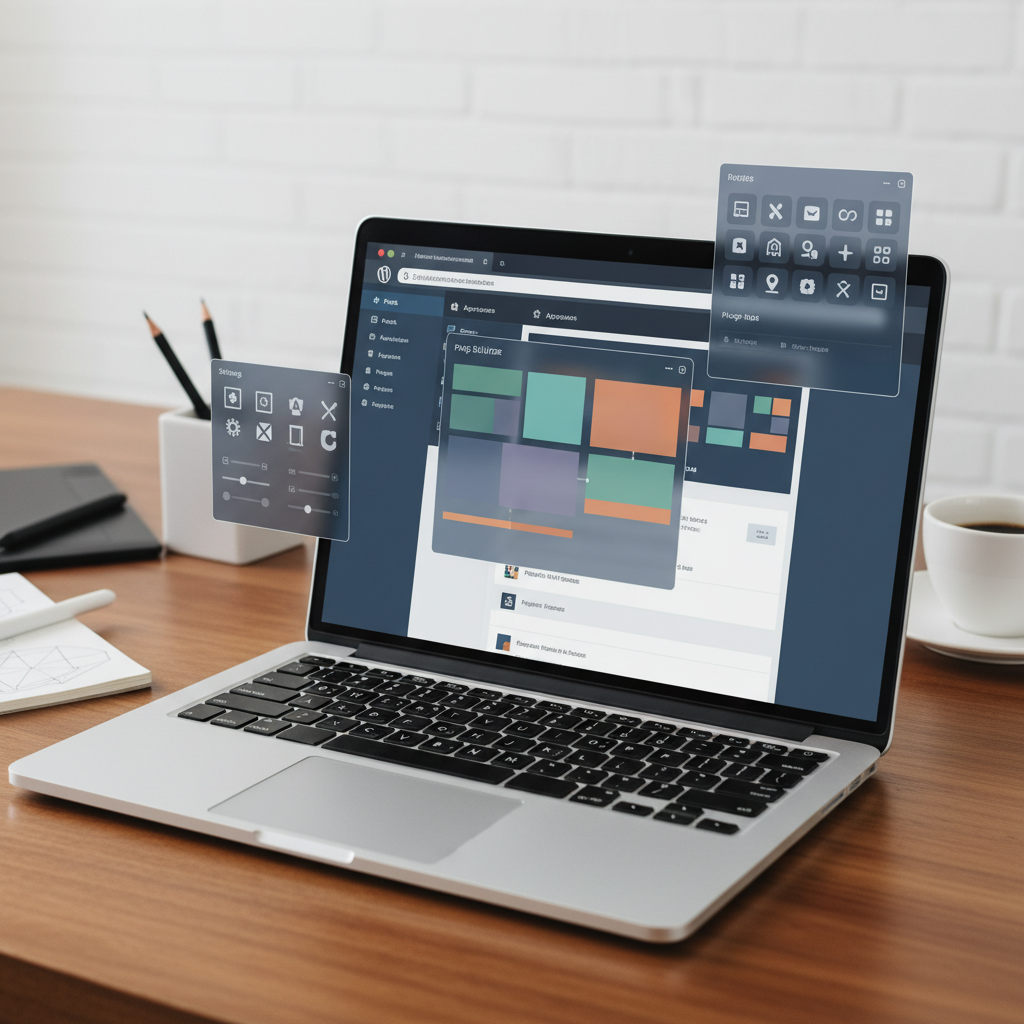
Step 3: Select and Customise Your Theme
Your WordPress theme controls the visual framework of your site, including typography, colour schemes, and page layout options. Choosing the right one early prevents painful redesigns later.
What to Look for in a WordPress Theme
- Block editor compatibility: As of 2026, full-site editing (FSE) themes built for the Gutenberg block editor offer the most flexibility without relying on third-party page builders.
- Mobile responsiveness: The theme must look and function correctly on smartphones. Google uses mobile-first indexing, meaning it judges your site primarily on its mobile version.
- Speed optimisation: Lightweight themes like Astra, GeneratePress, and Kadence consistently outperform bloated multipurpose themes in performance benchmarks.
- Active development: Check when the theme was last updated. A theme with no updates in 12 months is a security and compatibility risk.
- Good reviews and support: Read the reviews in the WordPress theme directory. Recurring complaints about broken features or unresponsive developers are red flags.
The Beginner WordPress Designer course on the official learning platform covers how to modify styles and work with block themes effectively. It’s a solid free resource if you’re approaching design without a technical background [6].
Customising Your Theme
- Upload your logo via Appearance > Customise > Site Identity (or the equivalent in your theme’s settings).
- Set your brand colours. Most modern themes allow you to define a primary and secondary colour palette that applies globally across the site.
- Choose your typography. Stick to two fonts maximum: one for headings, one for body text. More than two creates visual noise and slows page load times.
- Configure your header and footer. These appear on every page, so get them right. Include your logo, primary navigation, and contact details in the header. The footer should carry links to your Privacy Policy, Terms, and social profiles.
If you’re looking to understand how lead generation connects to your website’s design decisions, the guide to What Is Lead Generation offers useful context on how visual design choices influence enquiry rates across digital platforms.
Step 4: Build Your Key Pages with the Block Editor
The WordPress Block Editor (also called Gutenberg) is the native drag-and-drop page builder built into WordPress core. It lets you assemble pages from reusable content blocks without writing code.
The Essential Pages Every Business Site Needs
- Home: Your most important page. It should communicate who you are, what you do, who you serve, and what to do next, all within the first screen of content.
- About: Builds trust by telling your story. Include real credentials, your team, and why you do what you do.
- Services: One page per service, ideally. Each page should describe the service, explain the benefit to the customer, and include a clear call to action.
- Contact: A simple form, your phone number, email address, and if relevant, a map. Make it as easy as possible for someone to reach you.
- Blog: Optional but valuable for SEO. Regular, useful content signals to Google that your site is active and authoritative.
- Privacy Policy: Legally required under UK GDPR if you collect any personal data, including via contact forms.
Pro Tip: Write your page content before you start building in WordPress. Designing around placeholder “Lorem ipsum” text almost always produces layouts that don’t work when real content is dropped in. Real words reveal real problems early.
In one project we handled for a Surrey-based healthcare practice, the client had built their own site but couldn’t understand why enquiries were low. The home page had no clear call to action above the fold (the visible portion of the screen before scrolling). Adding a single prominent “Book a Consultation” button increased contact form submissions by over 40% within the first month after relaunch.
Step 5: Optimise for SEO and Performance in 2026
WordPress website design and search engine optimisation (SEO, the practice of improving a site’s visibility in search results) are inseparable. A site that looks great but ranks on page three of Google delivers almost no business value.
On-Page SEO Essentials
- Install an SEO plugin. Yoast SEO and Rank Math are the two dominant options. Both guide you through adding meta titles, meta descriptions, and structured data (schema markup) to each page.
- Research your keywords. Identify the specific phrases your customers type into Google. Tools like Google Search Console (free) and Semrush help you find terms with real search volume.
- Optimise each page’s title tag and meta description. These are what appear in search results. Make them compelling and include your target keyword naturally.
- Use heading hierarchy correctly. One H1 per page (your main headline), then H2s and H3s to structure the content beneath it.
- Add alt text to every image. Alt text (a written description of an image) helps search engines understand visual content and improves accessibility for screen reader users.
Core Web Vitals and Site Speed
Google’s Core Web Vitals are a set of performance metrics that measure loading speed, visual stability, and interactivity. As of 2026, they remain a confirmed ranking factor. Slow sites lose both rankings and visitors.
- Install a caching plugin: WP Super Cache or W3 Total Cache stores static versions of your pages so they load faster for repeat visitors.
- Compress your images: Use a plugin like Smush or ShortPixel to automatically compress images without visible quality loss.
- Use a CDN (Content Delivery Network): A CDN distributes your site’s files across servers worldwide so visitors load content from a server close to them. Cloudflare offers a free tier.
- Limit plugin bloat: Every active plugin adds code that runs on every page load. Audit your plugins quarterly and remove anything you’re not actively using.
Our team at Three Girls Media recommends running every new site through Google PageSpeed Insights before launch. A score below 70 on mobile almost always points to image compression or render-blocking scripts that are straightforward to fix once you know they’re there.
Step 6: Test, Secure, and Launch Your Site
Launching without testing is one of the most common mistakes in WordPress website design. A broken form or a page that doesn’t display on mobile can cost you real customers on day one.
Pre-Launch Checklist
- Test every form. Submit each contact form yourself and confirm you receive the notification email. Check your spam folder if it doesn’t arrive.
- Check every page on mobile. Use Chrome DevTools’ device emulator to preview your site on common screen sizes (375px for iPhone, 390px for newer models).
- Click every internal link. Broken links (404 errors) frustrate visitors and signal poor maintenance to search engines.
- Verify your SSL certificate is active. Your site should load with “https://” and a padlock icon in the browser bar.
- Set up Google Analytics and Google Search Console. These free tools track visitor behaviour and search performance from the moment you launch.
- Submit your sitemap to Google. In your SEO plugin, generate an XML sitemap and submit it via Google Search Console. This tells Google which pages to crawl and index.
- Remove the “Coming Soon” or maintenance mode if your host enabled it during setup. It sounds obvious, but this step gets missed more often than you’d think.
From experience, the most overlooked pre-launch item is the privacy policy and cookie consent banner. Under UK GDPR, if your site uses Google Analytics or any tracking cookies, you need explicit consent from visitors before those cookies fire. A plugin like CookieYes or Complianz handles this correctly.

Common Mistakes to Avoid
Most WordPress website design problems are predictable. Knowing what typically goes wrong saves you from learning the hard way.
Design and Content Pitfalls
- Choosing style over substance: A visually impressive site that doesn’t communicate clearly what you do and who you serve will fail to convert visitors into enquiries. Design serves communication, not the other way around.
- Uploading uncompressed images: A 4MB photograph uploaded directly from a camera will slow your page to a crawl. Always compress images before uploading.
- Ignoring mobile users: As of 2026, over 60% of web traffic comes from mobile devices. A site that works perfectly on desktop but breaks on a phone is losing the majority of its potential visitors.
- Too many plugins: A common mistake is installing a plugin for every minor function. Each one is a potential security vulnerability and a performance drag. Ask yourself whether a feature genuinely needs a plugin or whether native WordPress functionality covers it.
Technical and SEO Mistakes
- Using weak admin credentials: “admin” as a username and simple passwords are the most exploited vulnerabilities in WordPress. Use a strong, unique password and a non-obvious username.
- Skipping updates: Outdated WordPress core, themes, and plugins are the leading cause of hacked sites. Enable automatic updates for minor releases and check for major updates monthly.
- No backup strategy: One pitfall to watch for is assuming your host backs up your site automatically without verifying it. Test your backup restoration process before you need it in an emergency.
- Duplicate content: WordPress can generate multiple URLs for the same content (with and without trailing slashes, www vs. non-www). Configure your SEO plugin’s canonical URL settings to tell Google which version is definitive.
A Digital Marketing & Web Design client recently faced exactly this issue: their site had been running for two years with no backups when a plugin update caused a database conflict. Without a restore point, rebuilding cost them more time and money than the original build. The lesson: set up automated backups before anything else.
Sources & References
- WordPress.org, “Blog Tool, Publishing Platform, and CMS,” 2026
- Learn WordPress, “There’s Always More to Learn,” 2026
- WordPress.com, “Website Builder: Create Your Site With WordPress,” 2026
- Learn WordPress, “Beginner WordPress Designer Course,” 2026
Frequently Asked Questions
1. How much does WordPress website design cost?
Costs vary widely. A DIY WordPress website using a free theme and basic hosting can cost as little as £50 to £150 per year. A professionally designed site from an agency typically ranges from £1,500 to £8,000, depending on complexity, number of pages, and whether ecommerce functionality is required. Ongoing costs include hosting, domain renewal, and maintenance. For most small businesses, professional WordPress website design pays for itself through increased enquiries within the first year.
2. Do I need to know how to code to design a WordPress website?
No. The WordPress Block Editor and page builders like Elementor allow you to build professional layouts visually without writing a single line of code. That said, a basic understanding of HTML and CSS helps when troubleshooting minor display issues. For complex customisations or unique functionality, a developer’s input remains valuable. Most small business owners manage their own content updates comfortably after a short learning period.
3. How long does it take to build a WordPress website?
A simple five-page business site typically takes one to three weeks when built by a professional agency, assuming content and brand assets are ready from the start. DIY builds take longer, often four to eight weeks for a first-time builder. Ecommerce sites with product catalogues, payment gateways, and custom functionality can take six to twelve weeks. The biggest delays almost always come from slow content delivery, not the technical build itself.
4. Is WordPress good for SEO?
Yes. WordPress website design is inherently SEO-friendly. The platform generates clean HTML, supports customisable URL structures, and integrates with powerful SEO plugins like Yoast SEO and Rank Math that guide you through on-page optimisation. Results depend on your content quality, site speed, and link profile, but WordPress removes most of the technical barriers to ranking well in Google. According to research from multiple SEO studies, WordPress sites consistently outperform equivalent sites on proprietary builders in organic search performance.
5. What is the difference between a WordPress theme and a page builder?
A theme is the foundational design framework that controls your site’s overall appearance, including typography, colour defaults, and layout structure. A page builder (such as Elementor, Beaver Builder, or the native Gutenberg Block Editor) is a tool layered on top of the theme that lets you drag and drop content elements to create custom page layouts. Think of the theme as the architecture and the page builder as the interior design. Many modern themes are designed specifically to work with a particular page builder for the best results.
6. How do I make my WordPress site secure?
Security for WordPress website design involves several layers working together. Use a strong, unique admin password and a non-obvious username. Install a security plugin like Wordfence. Keep WordPress core, themes, and plugins updated at all times. Enable two-factor authentication (2FA) on your admin account. Use a reputable host with server-level security. Set up automated daily backups stored off-site. Limit login attempts to block brute-force attacks. Most WordPress hacks exploit outdated software or weak credentials, so these steps prevent the vast majority of threats.
7. Can I sell products through a WordPress website?
Absolutely. WooCommerce, the leading ecommerce plugin for WordPress, powers over 28% of all online stores globally as of 2026. It handles product listings, shopping carts, payment processing (via Stripe, PayPal, and others), inventory management, and order fulfilment. For businesses in Surrey and South London looking to launch an online store, professional ecommerce WordPress website design ensures the store is built with real buying behaviour in mind, not just technical functionality.
Building a Site That Works as Hard as You Do
Good WordPress website design isn’t just about aesthetics. It’s about building a site that loads fast, ranks in search results, communicates clearly, and turns visitors into paying customers. The steps in this guide cover every stage of that process: from choosing hosting and installing WordPress, to selecting a theme, building your pages, optimising for SEO, and launching with confidence.
Results may vary depending on your industry, competition, and content quality. But the fundamentals don’t change. A well-structured, fast-loading, mobile-friendly WordPress site consistently outperforms a neglected or DIY-built one, regardless of sector.
If you’d rather skip the technical learning curve and get straight to the results, Three Girls Media designs and builds WordPress websites for small and medium-sized businesses across Surrey and South London. With 10+ years of award-winning experience and a UX-led approach focused on real enquiries rather than just pretty pages, we build sites that deliver competitive advantage at prices that make sense for growing businesses. Contact us for a quote and let’s build something worth finding.
Recommended Articles
Explore more from our content library: